Adding ProSBC as a SIP Trunk in the Wildix Cloud VoIP PBX
Introduction
This document provides instructions on how to configure Wildix Cloud VoIP PBX with the ProSBC as a SIP trunk. Please visit the following link for more details about Wildix Cloud VoIP PBX documentation
Wildix Cloud VoIP PBX SIP Trunk Configuration
1 - Login to Wildix Collaboration. https://yourdomain.wildixin.com/authorization/. Your domain will be created by Wildix.

2 - In the main menu Select Settings and click to Manage PBX
File:Wildix Manage PBX
3 - In the PBX menu Select Trunks and click to +Add

4 - Add ProSBC Details in the new menu
  Title: Name of this trunk.
  Address or Host Name: Enter the ProSBC IP address or FQDN and the SIP port.
  Dialplan: Select a dial pan that will be used by this trunk configuration.
  Keep-Alive: This option must be enabled.

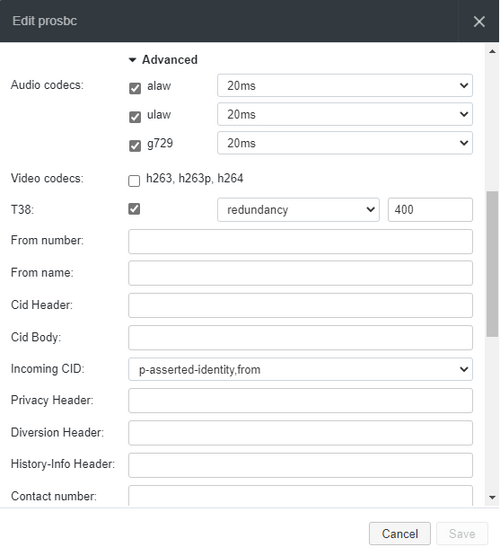
5 - Click on Advanced in the trunk configuration screen 6 - Configure Advanced options.
Audio codecs: Select the codecs you want to use. proSBC supports Alaw, Ulaw, and G.729.
Video codecs: Don't select. The ProSBC does not support Video.
T38: If you want to use ProSBC to send faxes enable this option.
DTMF mode: Select rfc2833 and set 101 for payload
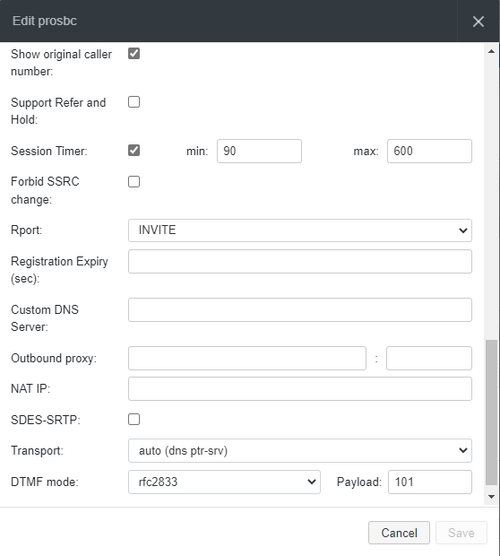
Click on Save button.

