|
|
| Line 27: |
Line 27: |
|
| |
|
| [[Image:Web_Portal_v2.3_SCCP_Created.png|700px]] | | [[Image:Web_Portal_v2.3_SCCP_Created.png|700px]] |
|
| |
| == Description of parameters ==
| |
|
| |
| These parameters are common to every other instance created afterward (i.e. networks, userparts, interfaces, circuits).
| |
|
| |
|
| |
| The timers have the following definitions; all timer values must be expressed in milliseconds):
| |
|
| |
|
| |
| {| class="wikitable" border="1"
| |
| ! width="150" style="background:#efefef;" |Timer
| |
| ! width="350" style="background:#efefef;" |Description
| |
| |-
| |
| | T18 Timer|| GROUP BLOCKING message sent. Terminated normally when GROUP BLOCKING ACKNOWLEDGMENT is received. Typical values are 15 to 60 seconds.
| |
| |-
| |
| | T19 Timer || INITIAL GROUP BLOCKING message sent. Terminated normally when GROUP BLOCKING ACKNOWLEDGMENT is received. Typical values are 5 to 15 minutes.
| |
| |-
| |
| | T20 Timer|| GROUP UNBLOCKING message sent. Terminated normally when GROUP UNBLOCKING ACKNOWLEDGMENT is received. Typical values are 15 to 60 seconds.
| |
| |-
| |
| | T21 Timer|| INITIAL GROUP UNBLOCKING message sent. Terminated normally when GROUP UNBLOCKING ACKNOWLEDGMENT is received. Typical values are 5 to 15 minutes.
| |
| |-
| |
| | T22 Timer|| GROUP RESET sent timer. Terminated normally at the receipt of the acknowledgment. Typical values are 15 to 60 seconds.
| |
| |-
| |
| | T23 Timer|| INITIAL GROUP RESET sent timer. Terminated normally when acknowledgment is received. Typical values are 5 to 15 minutes.
| |
| |-
| |
| | T28 Timer|| CIRCUIT GROUP QUERY sent timer. Terminated normally when CIRCUIT GROUP QUERY RESPONSE message is received. When this alarm expires, an alarm is generated. Typical value is 10 seconds.
| |
| |-
| |
| | FGR Timer|| ANSI and Telcordia FIRST GROUP received timer. A typical value is 5 seconds.
| |
| |}
| |
|
| |
|
| |
| '''NOTE:''' ITU variants do not support FGR Timer. Therefore, the timer does not need to be configured for these variants.
| |
|
| |
|
| |
| '''NOTE:''' The following timers are not required for the UK: T28
| |
Latest revision as of 09:52, 8 November 2009
To create an SCCP stack
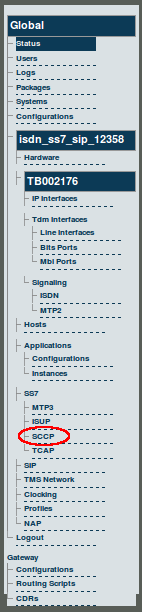
1. Select SCCP from the navigation panel.
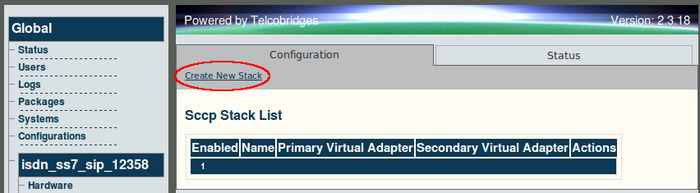
2. Click 'Create New Stack'
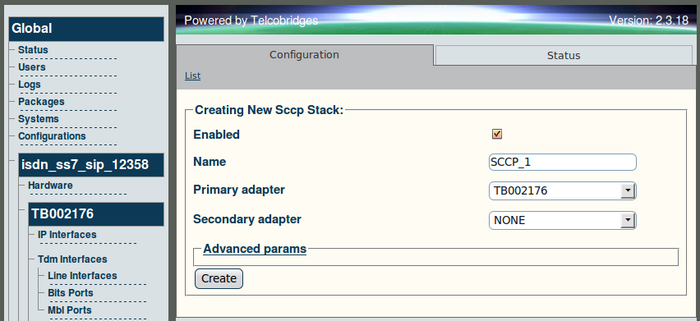
3. Provide a name for the SCCP stack
- Select one Tmedia unit as the primary to run the SCCP stack for the Tmedia network.
- Select another Tmedia unit as the secondary unit to run the SCCP stack
- Click 'Create' to save the SCCP stack
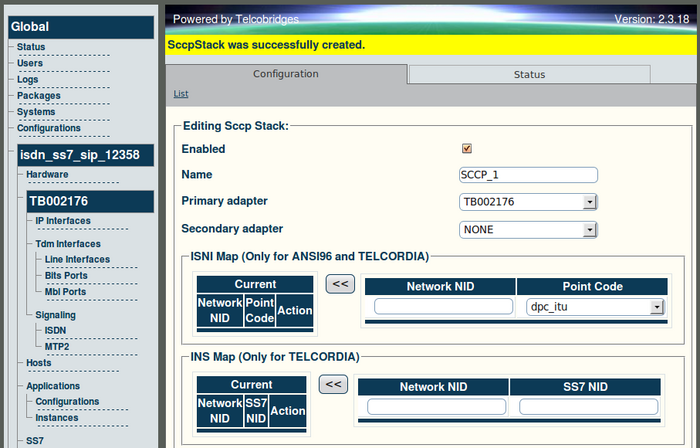
4. Verify that the 'SCCP Stack was successfully created' message appears.