FreeSBC:Cloud:AWS Installation A: Difference between revisions
No edit summary |
No edit summary |
||
| Line 35: | Line 35: | ||
<li>Click “Launch”. Please, note that FreeSBC is free of charges. However, you will still be charged by Amazon for using their resources you allocated:</li> | <li>Click “Launch”. Please, note that FreeSBC is free of charges. However, you will still be charged by Amazon for using their resources you allocated:</li> | ||
<gallery> | <gallery> | ||
File:LaunchInstance.png| | File:LaunchInstance.png|Launch an instance of ''FreeSBC'' AMI | ||
</gallery> | </gallery> | ||
<li>You will be prompted to create a key pair, allowing you to securely connect to your instance. Select “Create a new key pair” if you do not own one, and give it a name. Then, click on “Download Key Pair” to download a .pem file since it is needed for a secured SSH connection:</li> | <li>You will be prompted to create a key pair, allowing you to securely connect to your instance. Select “Create a new key pair” if you do not own one, and give it a name. Then, click on “Download Key Pair” to download a .pem file since it is needed for a secured SSH connection:</li> | ||
<gallery> | <gallery> | ||
File: | File:DownloadKey.png|Download generated Key Pair | ||
</gallery> | </gallery> | ||
<li>Click on “Launch Instances”:</li> | <li>Click on “Launch Instances”:</li> | ||
<gallery> | <gallery> | ||
File: | File:LaunchWithKey.png|Launch ''FreeSBC'' instance with generated key | ||
</gallery> | </gallery> | ||
Revision as of 14:11, 26 February 2018
This page is intended to give assistance to people launching an instance of FreeSBC using Amazon Machine Image (AMI) on Amazon Marketplace Service (AWS). In the Troubleshot section, instructions are suggested for a potential issue that a user may encounter.
Procedure to instanciate an AMI
- After logging in your Amazon account, click on “EC2” in the main AWS console:
-

Show main console on AWS
- On the left menu, click on “AMIs”:
-
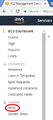
Show available AMIs on AWS
- Click on the filter drop list and select “Private image” to locate FreeSBC AMI:
-
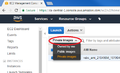
Filter Available Images
- Select the image and click “Launch”: (Check the troubleshooting section if you have a launching issue)
-
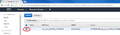
Show available AMIs on AWS
- Select the instance type and its resources. For FreeSBC to run, you need to launch at least m4.large (2 vCPU, 8 GiB):
-
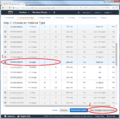
Select minimum resources for FreeSBC
- Click “Review and Launch”:
-
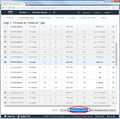
Review and launch FreeSBC with the selected resources
- Click “Launch”. Please, note that FreeSBC is free of charges. However, you will still be charged by Amazon for using their resources you allocated:
-
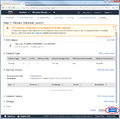
Launch an instance of FreeSBC AMI
- You will be prompted to create a key pair, allowing you to securely connect to your instance. Select “Create a new key pair” if you do not own one, and give it a name. Then, click on “Download Key Pair” to download a .pem file since it is needed for a secured SSH connection:
-
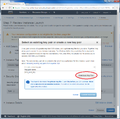
Download generated Key Pair
- Click on “Launch Instances”:
-
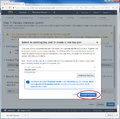
Launch FreeSBC instance with generated key
- You can view your instance by clicking on “View Instances”:
-
Show available AMIs on AWS
- Select the instance m4.large you just created, and give a name:
-
Show available AMIs on AWS
- Right-click on the selected FreeSBC instance and select “Connect”:
-
Show available AMIs on AWS


You are now ready to connect to FreeSBC instance on AWS. Depending on your operating system, you can follow the links on Amazon guide to do so:
| Your Computer | Topic |
|---|---|
| Linux | Connecting to Your Linux Instance Using SSH |
| Windows | Connecting to Your Linux Instance from Windows Using PuTTY |
| All (using Firefox, Edge or Internet Explorer) | Connecting to Your Linux Instance Using MindTerm |